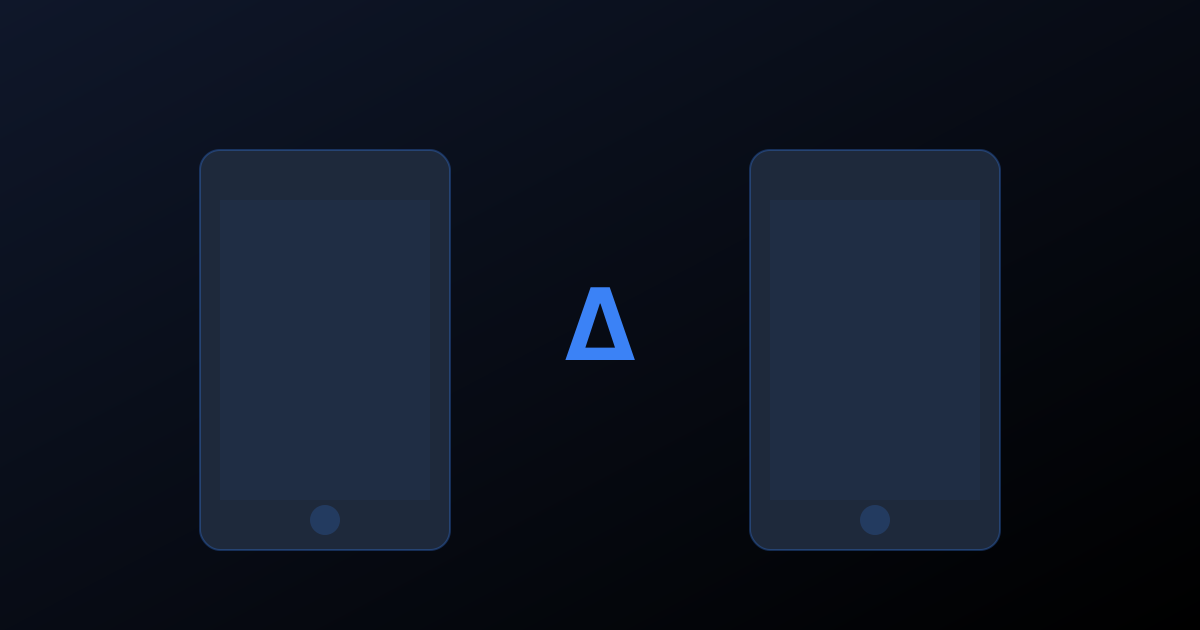
Definition: Visual testing (or visual QA) is an automated verification method that compares user interface screenshots between two versions to detect any unintended visual difference, regardless of the underlying source code.
The essentials on one page (what a no-code tool really automates and how it compares): No-code test automation.
Product Manager, prove what you see without depending on a dev or writing a single line of code. Delta-QA compares your before/after screens no-code, for free and with no credit card. Try Delta-QA for free →
The problem you experience every sprint
You're in a sprint review. The team demos a new feature. The interface loads and you immediately notice: the "Add to Cart" button changed from green to blue. The padding around the title is uneven. On mobile, the contact form overflows the screen.
You flag it. The developer frowns: "It didn't look like that on my machine." The QA adds: "All my tests pass green." And you look at the screen wondering if you're the only one who sees what's wrong. You're not alone: visual bugs are among the most common issues reported in production, yet they remain the hardest to catch with traditional testing.
Spoiler: you're not the only one. But you're probably the only person in the room without a tool to prove it.
Unit tests verify logic. Functional tests verify journeys. But nobody verifies that the interface matches what was designed. This gaping hole in the quality process is exactly what visual testing fills. And contrary to what you might think, it's not reserved for developers.
What is visual testing, concretely?
Forget everything you associate with the word "testing" in software development. Visual testing has nothing to do with lines of code running in a terminal.
The principle is simple. The tool takes a screenshot of your interface: called a baseline. This baseline represents the "correct" state of your page. Then, after each change (a new deployment, an update, a content change), the tool takes another screenshot and compares it to the baseline.
If there's a difference (even minimal, even a single-pixel shift) the tool highlights it in color and alerts you. You look at the difference and decide: it's an intentional change (you update the baseline) or it's a regression (you report it to the team).
That's it. No scripts. No CSS selectors to understand. No terminal to open. You look at images and compare. A specialized tool spots immediately that a button changed size.
The Metaphor for Your Stakeholders
If asked to explain visual testing to an executive, use this analogy: it's like a "before/after" at a photographer's. You have the reference photo (the approved mockup) and the result photo (the site in production). The tool overlays both and shows the discrepancies. Simple, visual, irrefutable.
Why PMs must take ownership of visual testing
Here's a strong conviction: visual testing isn't just for developers and QA, Product Managers must take ownership of it.
You Are the Guardian of User Experience
As a PM, you're the person closest to the end user on the team. You validate mockups. You prioritize features. You accept deliverables in sprint review. But how do you verify that the deliverable actually matches the mockup?
Today, probably by eye, on one browser, on one device, at one moment. Better than nothing, but far from sufficient.
Developers Don't See the Same Bugs You Do
This isn't criticism: it's a cognitive reality. A developer looks at an interface and mentally checks that their changes work. They have a natural confirmation bias toward their own code. You, as a PM, look at the interface through the user's eyes. You see visual inconsistencies because you know the design intent.
Visual testing captures your PM perspective and automates it.
Visual Quality Directly Impacts Your Metrics
Visual bugs aren't "just cosmetic." According to a Google study published in 2012, users form a first impression of a website in 50 milliseconds. A misaligned button, an inconsistent font, broken spacing: these details erode trust and impact conversion. Visual bugs also affect SEO through Core Web Vitals signals like CLS.
You probably track conversion rate, bounce rate, NPS. But have you ever looked for correlations between a deployment and a drop in these metrics? Visual bugs are often the invisible culprit.
You Can't Be at Every Demo
Your team may deploy multiple times daily. You can't manually verify each deployment. Automated visual testing is your permanent safety net: it checks for you, 24/7, and only alerts you when something has changed.
What visual testing detects (that nobody else sees)
Layout regressions. A component shifting 20 pixels. A container no longer centering its content. A grid going from 3 columns to 2 for no reason. No functional test checks element positioning.
Typography issues. A font failing to load, replaced by the system font. A text size changing. A line-height collapsing. These issues are invisible in code but immediately visible on screen.
Color inconsistencies. A button changing from brand blue to browser-default blue. A background losing its transparency. A gradient disappearing. Functional tests check that the button exists and is clickable, not that it's the right color.
Responsive issues. The interface is perfect on desktop but broken on mobile. Or vice versa. Visual testing can capture the same page at multiple screen sizes and alert you on each.
Cross-browser regressions. Your site works on Chrome but an element behaves differently on Firefox or Safari. Without cross-browser visual testing, you only discover this when a user complains.
How a PM uses visual testing daily
Monday: Validating Previous Sprint Deliverables
You open your visual testing tool. It shows you differences detected since the last deployment. In three minutes, you see the product page has new padding (intentional, you approve) and the footer lost its social media icon (regression, you create a ticket).
Wednesday: Checking the Feature in Progress
A developer sends you a link to the staging environment. Instead of manually browsing each page, you run a visual scan. The tool compares staging to production and shows exactly what changed. You identify an alignment issue on the pricing page before the code even reaches production.
Friday: Pre-Release Check
Before Friday's deployment, you check the visual test report. Zero unvalidated differences. You give the green light with full confidence.
The Crucial Point: You Coded Nothing
In none of these situations did you open a terminal, write a script, or read source code. You looked at images, clicked "Approve" or "Flag," and made informed product decisions. That's accessible visual QA for non-technical profiles, and that's exactly how it should work.
Verify every deliverable without writing a single line of code. Delta-QA lets product managers spot unintended UI changes between versions: free, no-code, no credit card required. Try Delta-QA for free →
Delta-QA: Visual testing designed for non-technical users
Delta-QA was built with one conviction: visual quality shouldn't be a technical matter. It's a no-code visual testing tool that lets anyone (PM, designer, QA, executive) verify a website's appearance.
No scripts to write. You enter your site's URL. Delta-QA handles the rest.
Clear visual comparisons. Differences are highlighted in color on a side-by-side view. No need to be a developer to understand that a red element in the comparison means "something changed here."
Targeted alerts. You only get notified when something has changed. No noise. No false positives. Just the information you need to make a decision.
Multi-device, multi-browser. Delta-QA captures pages across different screen sizes and browsers. You see your site as your users see it, not just as it appears on your MacBook Pro.
Integrating visual testing into your product workflow
Step 1: Identify Your Critical Pages
Start with pages that generate revenue or are seen by the most users: homepage, product page, pricing page, conversion funnel. You don't need to test everything on day one.
Step 2: Create Your Baselines
Capture the current state of these pages as your reference. This is your "visual source of truth." If the current state has known bugs, fix them first: a baseline should represent the desired state.
Step 3: Integrate into Your Definition of Done
Add "Visual verification passed" to your Definition of Done. When a developer submits a deliverable, visual testing is part of the acceptance criteria.
Step 4: Train Your Team
Show developers and QA how to interpret visual reports. Show designers how their mockups are (or aren't) respected in production. Visual testing becomes a common language across all team roles.
Step 5: Automate
Connect Delta-QA to your CI/CD pipeline so every deployment automatically triggers a visual check. At this stage, visual testing is no longer a manual task: it's a permanent guardrail.
Final word: Take control of visual quality
As a Product Manager, you're responsible for the experience your users live. Not the one your technical team thinks they deliver: the one your users actually see. Visual testing is the tool that bridges this gap.
You no longer need to wait for sprint review to discover a visual bug. You no longer need to blindly trust "tests passing green." You have a concrete, visual, and autonomous way to verify that your deliverables meet your standards.
Ready to validate your next deliverables on your own? Run your first visual comparison with Delta-QA, for free and with no credit card. Try Delta-QA for free →
FAQ
Do you need technical skills to use visual testing?
No. Modern visual testing tools like Delta-QA are designed for use without any development skills. You enter a URL, the tool captures screenshots and shows you differences visually. If you know how to use a web browser, you know how to use Delta-QA.
Does visual testing replace QA team testing?
No, it complements it. Functional tests verify that user journeys work (clicking a button triggers the right action). Visual testing verifies that the interface looks as it should. These are two different quality dimensions, and both are necessary.
How long does it take to set up visual testing on a project?
With a no-code tool like Delta-QA, initial setup takes less than an hour. You identify your key pages, create baselines, and the system is operational. CI/CD integration may take slightly longer depending on your infrastructure, but a PM can start using the tool manually from day one.
Does visual testing generate many false positives?
Modern visual testing tools use configurable tolerance thresholds. A single-pixel change from browser anti-aliasing won't trigger an alert. However, a significant change in layout, color, or typography will be detected. You can adjust sensitivity to your needs.
How do you convince your team to adopt visual testing?
The best approach is a concrete demonstration. Capture your homepage today. Wait for the next deployment. Compare. There's a strong chance an unintended visual difference will appear, and that will be your most convincing argument. Teams adopt visual testing when they see what it catches.
Does visual testing work for mobile applications?
Delta-QA focuses on web applications, but captures pages at different screen sizes (mobile, tablet, desktop). For native iOS or Android apps, specific tools exist, but web visual testing already covers the majority of cases for PMs managing web products or progressive web apps.